
Everything Old Is New Again
Course Map
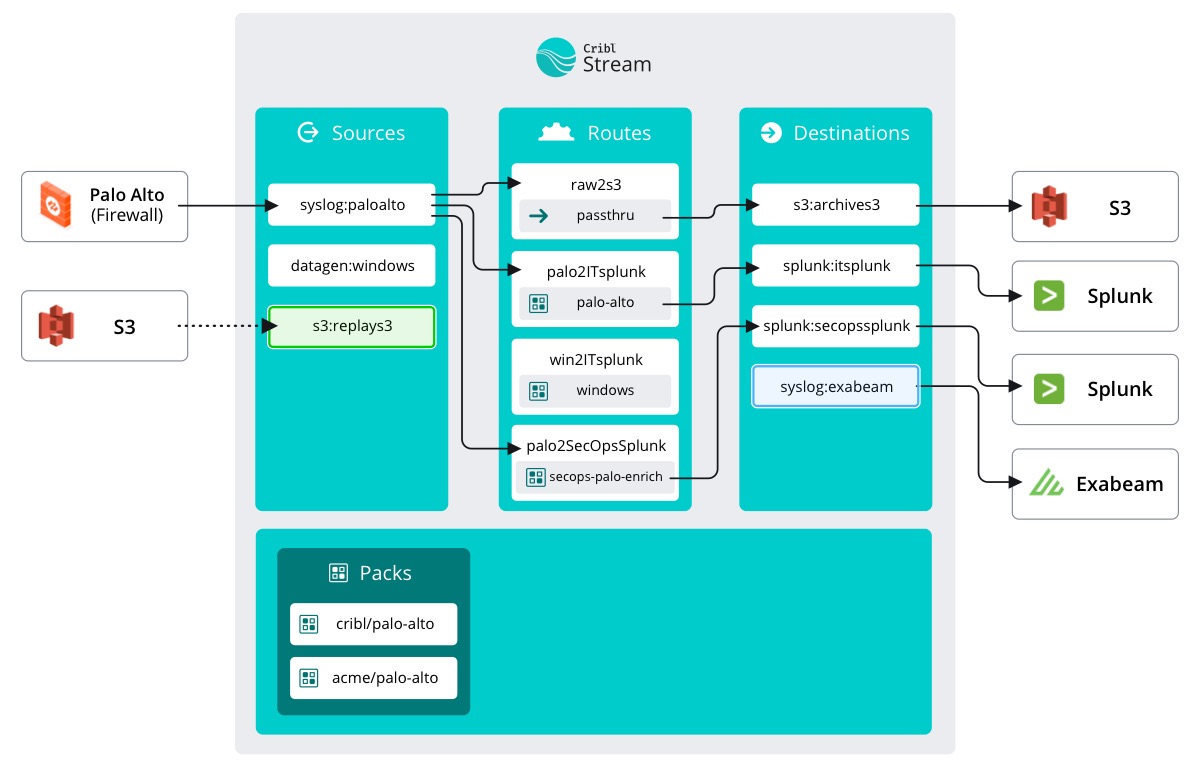
In the Archiving to S3 course, we configured a Data Route that streamed raw data flowing through Stream into an S3 bucket for archival purposes. This allows us to replay (or selectively re-ingest) that data at any time we need it.
Now that we need to replay our data, the first step is to add that same S3 bucket as a Source to Stream. Not just any Source, though - a Collector Source.
important
Add an S3 Collector
- Select the
Datasubmenu and clickSources - Click
S3under Collectors - Click
New Collector
note
On top of the Sources page, you can use the Autcomplete Search box to quickly locate your desired Source. Typeahead assist narrows the displayed results as you enter your query.
Try it out with S3.
Data flow is what differentiates a Source from a Collector Source. A regular Source constantly pushes data into Stream and we simply configure Stream to listen. A Collector Source is one where Stream reaches out and pulls data. Collector Sources work well for Sources hosting data at rest that isn’t being pushed anywhere.
In our case, we want to collect the data from our makeshift archive data lake and then pump it into a different Destination.
important
Fill out the S3 Collector details below
- Collector ID -
s3replay - Auto-populate from -
s3:archives3 - Path -
/${_time:%Y}/${_time:%m}/${_time:%d}/${_time:%H}/${sourcetype}/${src_zone}/${src_ip}/${dest_zone}/${dest_ip}/
NOTE: This path string denotes how the files have been stored in S3. IT changed the pathing schema to better fit their scripts, so it is slightly different than the one we configured on our S3 destination.
Event Breaker
We’ll take a little side step in the middle here to add an Event Breaker. Sparknotes for Event Breakers: They help Stream understand where one event ends and another begins. We are going to tell it to use the Cribl standard ruleset for breaking large chunks of data into smaller events.
important
Add an Event Breaker
- Click
Event Breakers - Click
+ Add ruleset - Select
Cribl
Route Bypass
Now here’s the really cool part. We can completely bypass configuring a Route since we want this data to flow straight into our new SIEM. We can tell Stream to use the passthru Pipeline to send the data to our preconfigured Destination.
important
Bypass the Routes
- Click
Result Routingon the left-hand side - Turn
Offthe switch for Send to Routes - Select
passthruas our Pipeline - Select
syslog:exabeamas our Destination - Click
Save
And that’s it really. If you went ahead and tried to click the Live view to see if data is flowing, you probably saw that there isn't a button for that. This is because our Source is a Collector and data only flows when scheduled or manually run. Let’s do that and watch our data flow!