
We'll Do It Live
Course Map
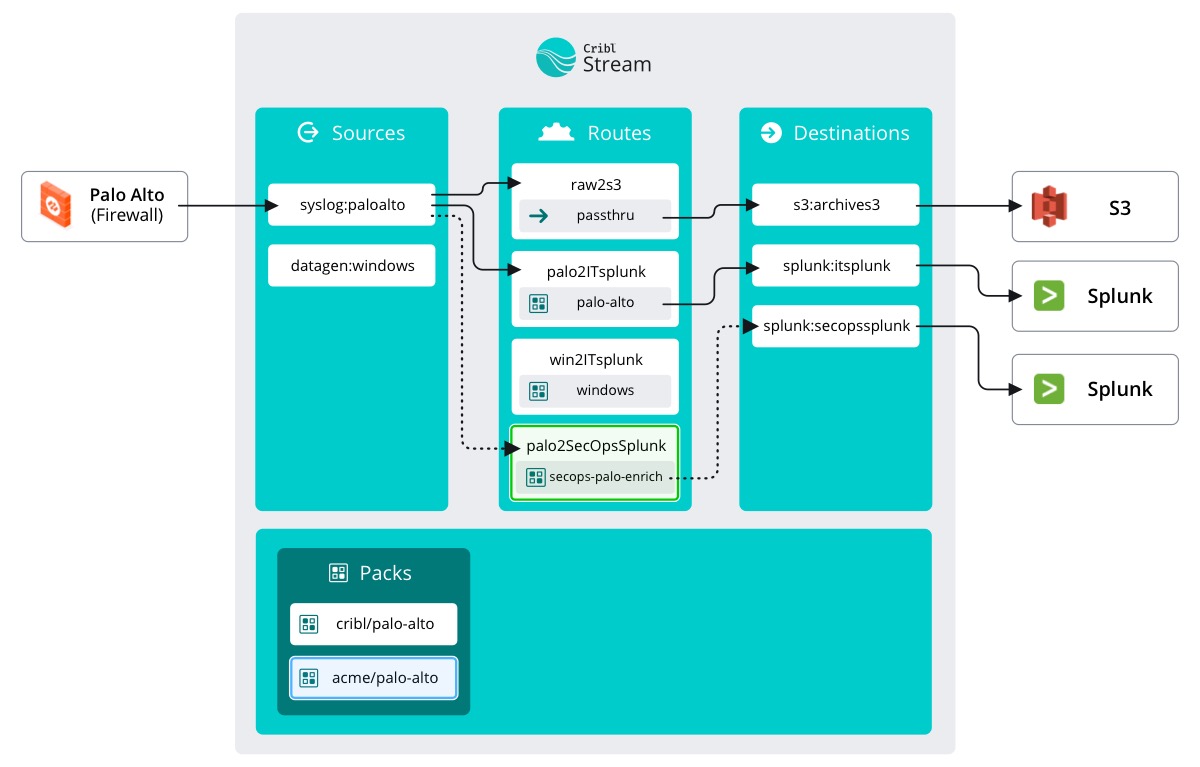
As we can see from the course map above, we’ll be adding a new Data Route that duplicates the incoming firewall traffic and streams it through our Pack’s Pipeline and then routes it to SecOp's Splunk Instance.
important
Make a new route
- Select the
Routingsubmenu and clickData Routes - Click
+ Route - Enter the Route details below
- Click
Save
Fill out the Route information as follows:
- Route Name:
palo2SecOpsSplunk - Filter:
__inputId.startsWith('syslog:paloalto') - Pipeline:
Pack secops-palo-enrich (pan-firewall-traffic) - Output:
splunk:secopssplunk - Description:
Enrich Palo data the way security wants using secops-palo-enrich pack, then send to secops splunk - Final:
No - Move the route to position 2 (just above palo2ITSplunk)
And that’s it! Another job done. Or is it? Here we are again at the end of this demo and you have the same choice: Believe that it delivered the promised results OR go a little further to check for proof.