
Pack That Thing Up
Course Map
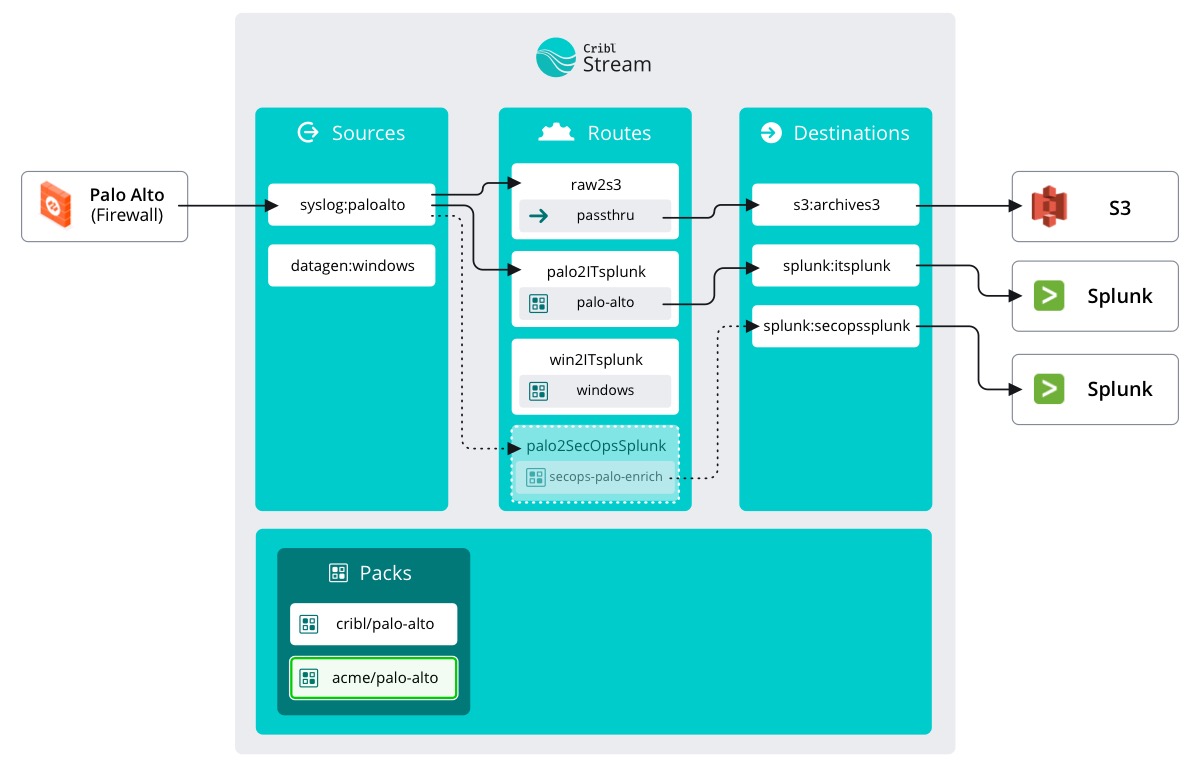
Let’s start by adding the Pack from our esteemed colleague, Ed. Notice that this Pack comes from a colleague and not the Dispensary. Stream makes it easy to share your own Packs and even include versioning!
important
Add the custom Pack
- Make sure
Manageis active in Stream's top nav – select theProcessingsubmenu and clickPacks - Click
New Pack - Select
Import from URL - Paste in the URL:
http://sandbox.cribl.io/course-downloads/palo-alto-pack.crbl - Enter
secops-palo-enrichin New Pack ID - Click
Import
note
While you can import from a URL, notice that can also download the Pack from the URL provided and upload the file itself.
Now that the Pack has been uploaded, let’s see what it contains: One data Route and a complex Pipeline complete with Function groups.
important
- Click
secops-palo-enrich - Click the
firewall_geoip_enrichPipeline hyperlink from thedefaultData Route